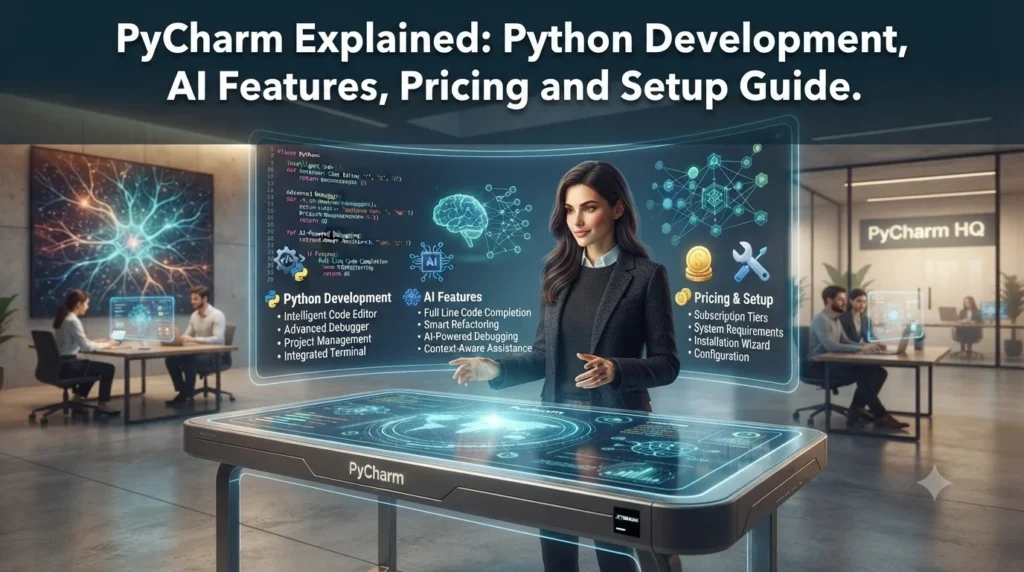
PyCharm Explained: Python Development, AI Features, Pricing and Setup Guide.
Python has become a popular choice for web development, automation, data science, artificial intelligence, scripting, and software development. As Python projects become larger, developers often need more than a simple text editor. They need tools for debugging, testing, code navigation, package management, version control, and project organization.
PyCharm is JetBrains’ integrated development environment (IDE) designed around Python development. It brings many development tools into one application, helping users write, understand, test, debug, and maintain Python projects.
PyCharm has also changed significantly in recent releases. Since PyCharm 2025.1, the former Community and Professional editions have been combined into one unified PyCharm product. Core functionality remains available for free, while a Pro subscription provides additional advanced capabilities. Users also receive a 30-day Pro trial when they install the unified product.
This guide explains what PyCharm is, what it can do, how its current editions work, its AI capabilities, system requirements, advantages, limitations, and how beginners can get started.
Quick Answer: What Is PyCharm?
PyCharm is a Python-focused IDE developed by JetBrains. It provides an environment for writing Python code and managing development tasks such as debugging, testing, refactoring, project navigation, and version control.
The current unified PyCharm product includes core functionality for free. A Pro subscription adds advanced functionality, while new installations include a 30-day Pro trial.
PyCharm runs on Windows, macOS, and Linux. Current documentation supports Python 3.9 through Python 3.15.
PyCharm at a Glance
| Feature | Details |
|---|---|
| Developer | JetBrains |
| Main purpose | Python development |
| Operating systems | Windows, macOS, Linux |
| Current release line | PyCharm 2026.2 |
| Latest listed maintenance release | PyCharm 2026.2.2 |
| Python support | Python 3.9–3.15 |
| Free option | Yes, core functionality |
| Pro trial | 30 days |
| Jupyter support | Included in core functionality |
| AI capabilities | Available through JetBrains AI tools |
| Web development | Supported, with advanced framework features in Pro |
| Database tools | Available, with advanced functionality in Pro |
What Does PyCharm Do?
PyCharm combines several development tools in a single workspace.
Instead of switching between separate applications for editing, debugging, testing, and navigating a project, developers can perform many of these tasks directly inside the IDE.
Its major capabilities include:
- Python code editing
- Code completion
- Type hints and inspections
- Debugging
- Testing
- Refactoring
- Git integration
- Virtual environment management
- Package management
- Jupyter Notebook support
- Database and SQL tools
- Web development
- Code profiling
- AI-assisted development
- Plugin support
JetBrains describes PyCharm as an IDE for Python development that also supports web and data-science workflows.
PyCharm’s Unified Product Model
One important change for people searching for PyCharm Community vs Professional is that the old two-product structure has changed.
Previously, JetBrains offered:
- PyCharm Community Edition
- PyCharm Professional
Starting with PyCharm 2025.1, these became part of a single unified PyCharm product.
The core functionality remains free. Users who need additional professional capabilities can use a Pro subscription.
New users receive a 30-day Pro trial automatically. After the trial, they can either subscribe to Pro or continue using the free core functionality.
This structure makes PyCharm easier to understand for beginners because they no longer have to choose between two separate PyCharm installers.
PyCharm Features Developers Can Use
1. Intelligent Python Code Editing
PyCharm is built around Python, so code editing is one of its central functions.
It provides features such as:
- Context-aware code completion
- Syntax highlighting
- Type information
- Auto-imports
- Code inspections
- Quick documentation
- Error detection
- Navigation between classes and functions
These features can reduce repetitive work and make large Python projects easier to navigate.
For beginners, visual feedback can also make it easier to identify coding mistakes before running an application.
2. Debugging
Debugging is another major reason developers use an IDE rather than a basic text editor.
PyCharm includes a visual debugger that lets developers inspect program execution and investigate problems.
The 2026.2 release uses debugpy as the default debugger for Python projects and Jupyter notebooks. JetBrains says this release also uses the Debug Adapter Protocol for the debugging experience.
Developers can use debugging tools to:
- Set breakpoints
- Inspect variables
- Step through code
- Evaluate expressions
- Track program execution
- Investigate exceptions
This can be particularly useful when an application behaves differently from what the developer expects.
3. Testing Tools
Testing helps developers verify that their applications continue working after changes.
PyCharm supports popular Python testing workflows and provides integrated tools for running and analyzing tests.
Instead of manually running every test command in a terminal, developers can manage many testing tasks from the IDE.
Testing support can be useful for:
- Unit tests
- Regression testing
- Application development
- Larger Python projects
- Continuous development workflows
4. Refactoring
Refactoring means improving the structure of existing code without intentionally changing its behavior.
For example, a developer may need to rename a function that appears across dozens of files.
PyCharm can help automate project-wide refactoring operations.
Its features include tools for:
- Renaming variables
- Moving code
- Extracting methods
- Extracting constants
- Changing project structures
- Converting modules into packages
This becomes more valuable as a Python project grows.
5. Git and Version Control
Modern software projects commonly use Git to track changes and collaborate with other developers.
PyCharm integrates version-control workflows into the IDE.
Developers can work with Git repositories while staying inside the same environment used for coding and debugging.
Typical tasks include:
- Viewing file changes
- Creating commits
- Managing branches
- Reviewing differences
- Resolving conflicts
- Working with remote repositories
The exact workflow can vary depending on how a development team organizes its repository.
PyCharm and AI Development
AI has become an increasingly visible part of modern development environments.
JetBrains currently promotes JetBrains AI and Junie, its coding agent, as part of the PyCharm experience.
According to JetBrains, its AI tools can assist with code completion, explanations, refactoring suggestions, and other development tasks. Junie is designed as a coding agent that can plan, write, refine, and test code within supported workflows.
AI assistance can be useful for tasks such as:
- Explaining unfamiliar code
- Generating code suggestions
- Understanding errors
- Improving existing code
- Creating tests
- Exploring project structure
- Automating repetitive development work
However, AI-generated code should still be reviewed. Developers remain responsible for checking correctness, security, dependencies, and project-specific requirements.
What’s New in PyCharm 2026.2?
The PyCharm 2026.2 release introduced several notable changes.
Rust Support for Python Extensions
PyCharm 2026.2 introduced a Rust plugin in beta for developing Python extensions that use Rust components.
This can help developers working on Python applications that rely on native Rust modules for performance-sensitive functionality.
debugpy as the Default Debugger
The release made debugpy the default debugging engine for Python projects and Jupyter notebooks.
That change provides a more consistent debugging workflow based on the Debug Adapter Protocol.
uv and Project Management Improvements
The 2026.2 release includes improvements around uvx and multi-project configurations involving tools such as uv, Poetry, and Hatch.
These updates are relevant to developers managing modern Python environments and dependency workflows.
Pyrefly
PyCharm 2026.2 integrates the Pyrefly engine for faster type-related insights.
Type analysis can help developers detect potential problems and understand how objects are being used throughout a project.
Editor Minimap
The editor also received a minimap feature.
A minimap provides a compact visual representation of a source file, allowing developers to navigate large files more quickly.
AI Project Generation
AI-assisted project generation is another feature highlighted in the 2026.2 release.
This reflects the broader movement toward integrating AI into the development environment rather than limiting AI assistance to a separate chatbot.
PyCharm for Web Development
Although PyCharm focuses on Python, it can also support web development.
The documentation identifies support for technologies including:
- HTML
- CSS
- JavaScript
- XML
Advanced framework support is available through the Pro functionality, including frameworks such as Django, Flask, and Pyramid.
This makes PyCharm useful for developers building Python-based web applications rather than only standalone scripts.
For example, a developer working on a Django application may use the same environment for:
- Python code
- Templates
- Front-end files
- Database work
- Debugging
- Testing
- Version control
That integrated workflow can reduce the need to switch between development applications.
PyCharm for Data Science and Jupyter
Jupyter Notebook support is now part of PyCharm’s core functionality.
This matters because many Python users work with notebooks for:
- Data analysis
- Experiments
- Visualization
- Machine learning
- Research
- Education
Having notebook functionality inside the IDE allows developers to combine interactive experimentation with the broader tools available for project development.
PyCharm can therefore be useful for people who move between traditional Python files and notebook-based workflows.
Database and SQL Tools
Database work is another area covered by PyCharm’s feature set.
JetBrains highlights database and SQL functionality that can help developers query databases, browse schemas, and work with database structures.
The feature set includes support for database technologies such as PostgreSQL, Oracle, MongoDB, and Redis. Availability of particular advanced database functionality depends on the PyCharm licensing level and configuration.
For developers building database-backed Python applications, having database tools inside the IDE can simplify the development workflow.
Python Versions Supported by PyCharm
According to the current PyCharm documentation, Python versions 3.9 through 3.15 are supported.
Developers need to install Python separately and then configure a Python interpreter or SDK in PyCharm.
The exact Python version you should use depends on your application and its dependencies.
For example, an existing business application may depend on an older Python version, while a new project may target a more recent release.
Before upgrading Python, check whether your project’s frameworks and third-party packages support the new version.
PyCharm System Requirements
Current PyCharm documentation lists the following baseline requirements:
| Requirement | Current documentation |
|---|---|
| CPU | 4-core x86_64 or ARM64 processor |
| RAM | 8 GB total |
| RAM available for IDE | 3 GB |
| Storage | 10 GB |
| Display | 1280 × 720 or higher |
| Operating systems | Windows, macOS, Linux |
These are baseline requirements. Actual performance can vary depending on project size, plugins, indexing activity, background processes, and system configuration.
Large projects can place considerably more demand on a computer than a small Python script.
Is PyCharm Free?
Yes, but it is important to understand what “free” means under the current unified product model.
PyCharm’s core functionality is free.
New installations also include a 30-day Pro trial. After the trial ends, users can continue with the free core functionality or purchase Pro to retain access to advanced capabilities.
This means someone learning Python does not necessarily need to purchase a subscription immediately.
A beginner can start with the free functionality and decide later whether the additional Pro features are useful for their workflow.
Who Should Use PyCharm?
PyCharm can fit several types of Python users.
Beginners
Beginners can benefit from:
- Code completion
- Error highlighting
- Integrated debugging
- Project navigation
- Documentation access
- Integrated testing
The interface may appear more complex than a lightweight code editor, but that complexity comes with additional development tools.
Professional Python Developers
Experienced developers may benefit from:
- Refactoring
- Debugging
- Testing
- Git integration
- Database tools
- Web frameworks
- Profiling
- AI assistance
These features can become more useful as projects grow.
Web Developers
Developers building Django, Flask, or other Python-based web applications can use PyCharm as a central development environment.
Data Scientists
Jupyter support and Python tooling make PyCharm relevant to data-science workflows.
However, individual preferences vary. Some data professionals may prefer specialized notebook or lightweight editor workflows.
Students
Students learning Python can use the free core functionality to practice programming without immediately purchasing a Pro subscription.
Advantages of PyCharm
Several characteristics make PyCharm attractive to Python developers.
Strong Python Focus
The IDE is designed specifically around Python development rather than treating Python as a secondary language.
Integrated Development Tools
Coding, debugging, testing, refactoring, and version control can be handled in one environment.
Good Project Navigation
Large projects can become difficult to understand when files are spread across multiple directories. PyCharm provides tools for navigating classes, functions, files, and references.
AI-Assisted Development
JetBrains continues to integrate AI features into its development environment, giving users additional options for code assistance and automation.
Cross-Platform Availability
PyCharm is available for Windows, macOS, and Linux.
Limitations to Consider
PyCharm is not automatically the right choice for every developer.
It Can Feel Heavy
A full IDE typically requires more system resources than a basic text editor.
Developers working on very small scripts may not need all of PyCharm’s functionality.
The Interface Takes Time to Learn
Beginners may initially encounter many panels, settings, shortcuts, and development tools.
Learning the interface can take some time.
Advanced Features Require Pro
Although the core product is free, some advanced capabilities require a Pro subscription.
Therefore, users should check which specific features they need before deciding whether they require Pro.
Plugins Can Change Over Time
JetBrains periodically reviews its bundled plugins.
For example, starting with PyCharm 2026.2, several low-usage plugins, including Data Wrangler, Hugging Face, and Google Colab, were unbundled and moved out of active maintenance by the PyCharm team. Compatible versions remain available for PyCharm 2026.2 through the JetBrains Marketplace, while the PyCharm team says it will stop publishing compatible versions beginning with 2026.3.
This is worth remembering if your workflow depends heavily on a particular plugin.
How to Start Using PyCharm
Getting started does not require an advanced Python background.
Step 1: Install Python
Download a supported Python version and install it on your computer.
Step 2: Install PyCharm
Download the current PyCharm installer for your operating system.
PyCharm can be installed through JetBrains Toolbox or as a standalone application.
Step 3: Create a Project
Open PyCharm and create a new Python project.
Choose an appropriate interpreter or virtual environment.
Step 4: Create a Python File
Create a .py file and write a simple program.
For example:
print("Hello, PyCharm!")Step 5: Run the Program
Use PyCharm’s Run functionality to execute the script.
The output will appear in the integrated Run window.
Step 6: Explore the Debugger
Add a breakpoint and run the program using Debug.
This is one of the easiest ways to understand how an IDE differs from a simple text editor.
PyCharm vs a Basic Code Editor
A basic editor can be excellent for quick scripts and lightweight editing.
PyCharm is designed for a more complete development workflow.
| Area | Basic Code Editor | PyCharm |
|---|---|---|
| Python editing | Yes | Yes |
| Debugger | Often requires setup/extensions | Integrated |
| Refactoring | Varies | Integrated |
| Testing | Often extensions | Integrated |
| Project navigation | Basic to advanced | Advanced |
| Git | Usually available through extensions/tools | Integrated |
| Jupyter | Varies | Built in |
| Database tools | Usually separate/extensions | Available |
| AI features | Depends on editor | JetBrains AI options |
| Learning curve | Usually lower | Higher |
The choice depends on the size of your projects and how many development tools you want in one application.
Is PyCharm Good for Python Beginners?
PyCharm can be useful for beginners because it provides immediate feedback while they learn.
For example, the IDE can highlight errors, suggest code completions, show documentation, and provide debugging tools.
At the same time, beginners should avoid relying completely on automatic suggestions.
Understanding Python fundamentals remains important.
Start by learning:
- Variables
- Data types
- Conditions
- Loops
- Functions
- Classes
- Modules
- Exceptions
- File handling
- Virtual environments
- Package management
Once those concepts are familiar, PyCharm’s advanced features become easier to understand.
Frequently Asked Questions
What is PyCharm used for?
PyCharm is primarily used to develop Python applications. It provides tools for coding, debugging, testing, refactoring, project navigation, version control, database work, web development, and other development tasks.
Is PyCharm free?
PyCharm offers free core functionality. A Pro subscription provides additional advanced features, and new installations receive a 30-day Pro trial.
Is PyCharm better than VS Code?
There is no universal answer. PyCharm provides a Python-focused IDE experience with many integrated development tools, while VS Code offers a highly customizable editor approach. The right choice depends on the developer’s workflow, project requirements, and preferred interface.
Can I use PyCharm for Django?
Yes. PyCharm supports Django development, with advanced Django functionality available through Pro.
Does PyCharm support Jupyter Notebook?
Yes. Jupyter Notebook support is included in PyCharm’s core functionality.
Which Python versions does PyCharm support?
Current PyCharm documentation lists Python 3.9 through Python 3.15 as supported versions.
Does PyCharm work on Windows?
Yes. PyCharm supports Windows, along with macOS and Linux.
Does PyCharm have AI features?
Yes. JetBrains offers AI capabilities in PyCharm, including JetBrains AI and the Junie coding agent. Available functionality can depend on the applicable product and subscription setup.
Can beginners use PyCharm?
Yes. Beginners can use PyCharm to learn Python and gradually explore features such as debugging, testing, Git, and project management.
Final Thoughts
PyCharm has evolved from a choice between separate Community and Professional editions into a unified Python development environment.
Its current product model provides free core functionality while offering Pro features for users who need more advanced capabilities. The 2026.2 release also expands the IDE with improvements to debugging, AI-assisted development, project management, type analysis, Rust-based Python extensions, and the editor experience.
For someone learning Python, the free functionality provides a practical starting point. More experienced developers can explore the advanced features as their projects become more demanding.
The most important factor is not simply whether PyCharm has many features. It is whether those features match the way you develop software. A small script may require only a lightweight editor, while a large Python application can benefit from an integrated IDE with debugging, testing, refactoring, version control, database tools, and AI assistance.