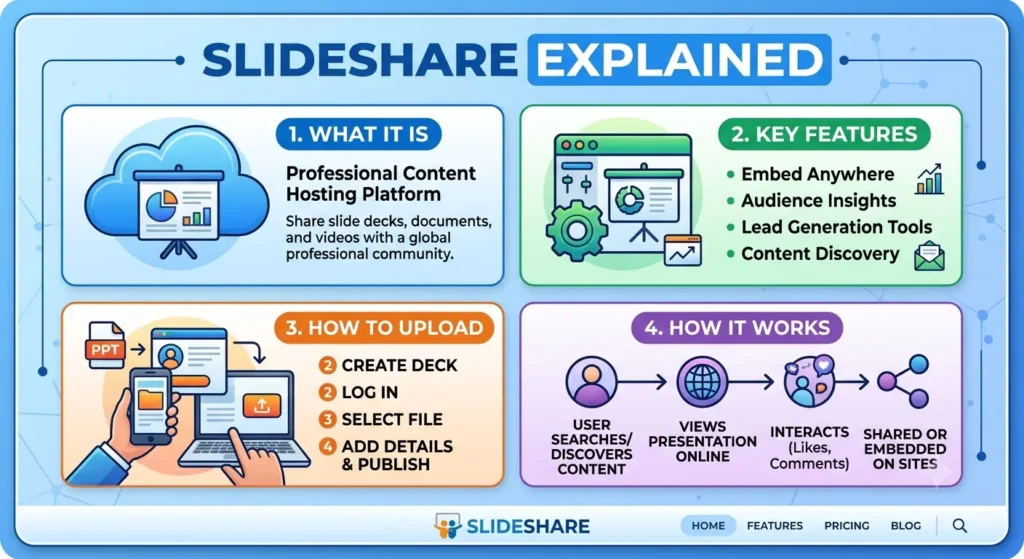
SlideShare: What It Is, Features, How to Upload Presentations and How It Works.
Introduction
Presentations are widely used to explain ideas, share knowledge, teach concepts and communicate information. However, a presentation does not always need to remain on a computer or be shared only with people in a meeting. Online platforms make it possible to publish presentations and make them accessible to a wider audience.
SlideShare is one such platform. It allows people to discover presentations, explore documents, learn about different subjects and share their own knowledge with others.
Students can use it to explore educational material, professionals can discover industry-related presentations, and businesses can use it to share information about their products, services and expertise.
SlideShare has also changed significantly over the years. Following its 2025 redesign, the platform introduced a refreshed interface and additional AI-powered features. Its current offering includes presentation discovery, content sharing and subscription-based benefits.
But what exactly is SlideShare? How does it work? Can you upload and download presentations? Is it free, and how can businesses use it for marketing?
This guide answers these questions and explains the platform’s main features, uses, benefits and limitations.
What Is SlideShare?
SlideShare is an online presentation-sharing and content-discovery platform where users can explore presentations, documents and other educational or professional resources.
It provides a place for people to share knowledge through visual content instead of relying entirely on long articles or written documents.
The platform was originally launched in 2006 and became widely known for hosting PowerPoint presentations, PDF documents and professional slide decks. LinkedIn acquired SlideShare in 2012. It later became part of Scribd following Scribd’s acquisition of the platform in 2020.
In September 2025, SlideShare introduced a refreshed brand identity and website experience. The updated platform focuses on making it easier to discover ideas, explore presentations and share knowledge.
Today, SlideShare describes itself as a platform for people who want to discover presentations, showcase their knowledge and develop their own ideas.
Its homepage reports access to more than 25 million presentations and documents and a community of more than 70 million users.
In simple terms, SlideShare is a digital library of presentations and documents where users can learn from existing content and share their own work.
How Does SlideShare Work?
SlideShare works by allowing users to discover content, view presentations and share knowledge through uploaded files.
The platform brings together content created by individuals, educators, professionals and organisations.
Here is a simple explanation of how it works.
1. Discover Presentations
Visitors can browse SlideShare to find presentations on subjects that interest them.
For example, someone researching digital marketing might search for SEO presentations, while a student could explore material related to science, business or education.
The platform also provides personalised recommendations to help users discover additional content.
2. View and Read Content
Users can open presentations and explore their slides directly through the website.
This makes it possible to learn from visual explanations, diagrams, charts, examples and other presentation formats.
Depending on the content, a presentation may provide a quick introduction to a topic or a more detailed explanation.
3. Create and Share Presentations
Users can prepare their own presentations using supported software, such as Microsoft PowerPoint, and share them through SlideShare when upload functionality is available.
The platform supports several file formats, including PowerPoint, PDF and Word documents.
4. Share Knowledge With Others
Published presentations can help creators reach people interested in their subjects.
Users can share presentation links through websites, social media and other communication channels. SlideShare also supports embedding presentations on external websites.
This makes it useful for educators, professionals, businesses and content creators who want to distribute information beyond their own websites.
Key Features of SlideShare
SlideShare offers several features that support presentation discovery, knowledge sharing and content distribution.
Let’s explore the most important ones.
1. Presentation Discovery
One of SlideShare’s main features is its collection of presentations across different subjects.
Visitors can explore existing slide decks to learn about topics, discover ideas and find inspiration for their own presentations.
For example, a business owner might explore presentations about customer experience, while a student could search for educational material related to a particular subject.
This feature makes SlideShare useful as both a presentation-sharing platform and a learning resource.
2. Multiple Content Formats
SlideShare is not limited to traditional PowerPoint presentations.
Its supported upload formats include:
- PowerPoint files such as PPT and PPTX.
- PowerPoint slideshow formats such as PPSX.
- PowerPoint template formats such as POTX.
- PDF documents.
- Word documents such as DOC and DOCX.
The platform can therefore accommodate different types of educational and professional content.
For example, a company could share a presentation explaining its services, while a writer could distribute a document containing useful industry information.
Supported formats and upload availability should always be checked against the latest official guidance.
3. AI-Powered Content Tools
The redesigned SlideShare experience includes AI-powered features for working with presentation content.
Subscribers can use tools to rewrite, rephrase or simplify existing slide content.
These features can help users understand complicated wording or adapt presentation text for different purposes.
For example, someone reading a technical presentation might use an available AI feature to simplify a section and make its main ideas easier to understand.
However, AI-generated changes should always be reviewed. Users should check accuracy, preserve the original meaning and respect the creator’s intellectual property rights.
4. Download Presentations
Downloading presentations is one of the features associated with SlideShare’s subscription offering.
Subscribers can download complete presentations in their original file formats where downloading is available.
This can be useful when users want to review content offline, refer to a presentation later or study its structure.
The ability to view a presentation does not necessarily mean that its original file can be downloaded without a subscription.
5. Copy and Extract Information
SlideShare’s subscription offering also includes the ability to copy and paste text directly from presentations.
This can be helpful when users want to extract important information for their own research or notes.
However, extracting text does not give someone permission to republish another person’s copyrighted material. Always respect the original creator’s rights and provide appropriate attribution when using information.
6. Embed Presentations on Websites
SlideShare presentations can be embedded on external websites, allowing visitors to view a presentation without leaving the page.
For example, a business could embed an educational presentation within a blog post.
This can make an article more interactive and help readers understand a topic through visual explanations.
Embedding is particularly useful for educational websites, professional blogs and resource pages.
7. Personalised Recommendations
SlideShare provides personalised recommendations to help users discover presentations based on their interests and browsing experience.
Instead of searching for every topic manually, users can explore suggested content and find related resources.
This can make the platform more useful for people who regularly research different subjects.
8. Ad-Supported Access
SlideShare offers an ad-supported way to browse and explore content without requiring a subscription.
Visitors can access presentations and use the platform’s basic discovery experience, although some additional features are reserved for subscribers.
The free and paid experiences therefore serve different needs.
Is SlideShare Free to Use?
Yes, SlideShare provides free, ad-supported access. However, not every feature is available without a subscription.
The platform currently offers a free browsing experience alongside a subscription that provides additional benefits.
Here is a general comparison.
| Feature | Free, Ad-Supported Access | Subscription |
|---|---|---|
| Browse presentations | Yes | Yes |
| Read available content | Yes | Yes |
| Discover presentations | Yes | Yes |
| Advertisements | Yes | Ad-free experience |
| Download complete presentations | Limited | Included |
| Copy and paste presentation text | Limited | Included |
| AI-powered text tools | Limited | Included |
| Additional document access | Limited | Included benefits |
The platform advertises a free 30-day trial for its subscription offering. Its homepage displays a price of $11.99 per month after the trial, although users should confirm the current price, billing conditions and availability in their region before subscribing.
The most suitable option depends on how you plan to use SlideShare.
If you mainly want to browse presentations and discover information, free access may be sufficient. If you regularly need downloadable files, text extraction and an ad-free experience, a subscription may be more useful.
How to Upload a Presentation to SlideShare
Uploading a presentation is one of the main activities traditionally associated with SlideShare.
However, there is an important current limitation.
According to the official SlideShare Help Centre, presentation uploads were temporarily unavailable as of 6 October 2026. Existing uploaded presentations were not affected, but users could not upload new presentations at that time.
The following steps describe the usual publishing workflow and are intended for when uploading becomes available again.
Step 1: Visit the Official SlideShare Website
Open SlideShare in your browser.
Explore the homepage and sign in using the account options currently provided by the platform.
Step 2: Prepare Your Presentation
Create your presentation using compatible software such as Microsoft PowerPoint.
Before uploading, check:
- Whether the file uses a supported format.
- Whether the content is original or properly licensed.
- Whether images and other visual elements are clear.
- Whether the presentation contains spelling or formatting errors.
- Whether the file meets the current upload limits.
SlideShare’s documented supported formats include PowerPoint, PDF and Word files.
Step 3: Open the Upload Section
When uploads are available, visit the upload section or use the upload option on the website.
Select the presentation file from your computer or choose an available supported cloud-storage option.
Step 4: Add Presentation Details
The publishing workflow includes information such as:
- Presentation title.
- Description.
- Category.
- Relevant tags.
Choose a descriptive title that explains what the presentation covers.
Write a useful description so visitors can understand what they will learn before opening the presentation.
Step 5: Review the Presentation
Check the uploaded content before publishing.
Look for formatting problems, missing images, incorrect slide order and other display issues.
A presentation that looks good on your computer may appear differently after being processed by an online platform.
Step 6: Publish Your Presentation
Once uploads are available again, review the publishing settings and follow the instructions shown by SlideShare.
After successful publication, your presentation can become available for other users to discover, depending on its privacy and visibility settings.
Always check the official Help Centre for the latest service status and instructions.
How to Download Presentations From SlideShare
Downloading presentations can be useful when you want to access material offline or keep a copy for future reference.
However, direct downloading is currently listed as a subscription benefit.
Here is the general process:
- Visit the SlideShare website.
- Search for the presentation you want.
- Open its presentation page.
- Check whether a download option is available.
- Sign in and confirm your subscription status if required.
- Follow the available download instructions.
Not every presentation necessarily has the same download permissions.
If a creator or platform setting restricts downloading, respect those restrictions. Do not use third-party methods to bypass access controls or download content without permission.
How Students Can Use SlideShare
SlideShare can be useful for students who want to explore educational material and learn through visual presentations.
Instead of reading only long-form articles, students can use slide decks to understand concepts through short explanations, diagrams and examples.
Here are a few practical uses.
1. Explore New Subjects
Students can search for presentations related to their courses, assignments or personal interests.
For example, a business student might explore presentations about marketing strategies, while a science student could search for introductory explanations of scientific concepts.
2. Understand Complex Topics
Some subjects are easier to understand when information is presented visually.
Charts, diagrams and step-by-step slides can help explain processes that may be difficult to follow in a long paragraph.
3. Find Presentation Inspiration
Students preparing their own presentations can explore how other creators organise information.
They can observe slide structure, headings, visual hierarchy and the use of diagrams.
The aim should be to learn presentation techniques, not copy another person’s work.
4. Support Research
SlideShare can help students discover topics and identify useful ideas for further investigation.
However, presentations should not automatically be treated as authoritative academic sources.
Verify important claims through textbooks, research papers, academic publications and other reliable sources. Follow your institution’s rules for citations and referencing.
How Businesses Can Use SlideShare for Marketing
SlideShare can also be relevant to businesses that want to share professional knowledge and distribute educational content.
A well-prepared presentation can communicate information in a visual format and introduce a company to people interested in its industry.
Here are some ways businesses can use the platform.
1. Share Educational Content
Businesses can create presentations that explain common industry questions, challenges and solutions.
For example, an SEO agency could prepare a presentation about keyword research, technical SEO or local search optimisation.
Educational content can help demonstrate expertise while giving readers useful information.
2. Showcase Products and Services
A business can use a presentation to explain its services, product features, processes or customer solutions.
Instead of publishing a presentation that focuses only on sales messages, it is often more useful to explain how a product works and which problems it addresses.
3. Build Brand Awareness
Sharing informative presentations can introduce a business to people who may not have visited its website before.
The opportunity to reach a wider audience depends on the presentation’s quality, relevance and visibility.
4. Repurpose Existing Content
Businesses can transform existing educational content into presentations.
For example:
- A blog post can become a short presentation.
- A webinar can be converted into a slide deck.
- A research report can be summarised visually.
- A training document can become a presentation.
- A case study can be turned into a sequence of slides.
Repurposing content can help businesses distribute their ideas in different formats without starting every project from scratch.
5. Support Website Content
Where embedding is available, businesses can include presentations within relevant website pages or blog posts.
This can provide visitors with another way to understand a subject.
However, an embedded presentation should support the page’s main content rather than replace useful written explanations.
Does SlideShare Help With SEO?
SlideShare can form part of a broader content distribution strategy, but it should not be treated as a guaranteed SEO shortcut.
Publishing a presentation does not automatically improve your website’s search rankings.
The actual value depends on how people discover, use and share the content.
Here are some potential SEO and marketing benefits.
1. Content Visibility
SlideShare provides another place to publish and distribute educational content.
If a presentation attracts relevant readers, it can help increase awareness of the topic and the creator’s brand.
2. Referral Traffic
A presentation may include relevant links to a business website or additional resources.
Readers who want more information may follow those links.
However, referral traffic depends on whether people discover the presentation and find its links useful.
3. Brand Recognition
Publishing useful presentations can help a business demonstrate its knowledge in a particular field.
Over time, consistently useful content may make it easier for people to recognise the business and understand what it offers.
4. Content Repurposing
Turning blog posts, guides and reports into presentations gives businesses another way to distribute existing knowledge.
This can support a wider content marketing strategy across multiple channels.
5. Search Engine Discovery
SlideShare’s upload page states that uploaded content can be indexed by Google and other search engines.
However, indexing does not guarantee rankings or traffic. Search visibility depends on many factors, including content relevance, quality, competition and search-engine systems.
Businesses should focus on creating useful presentations rather than publishing large volumes of thin content solely to obtain links.
SlideShare vs PowerPoint: What Is the Difference?
SlideShare and PowerPoint are often mentioned together, but they serve different purposes.
PowerPoint is presentation software used to create, edit and organise slides.
SlideShare is an online platform used to discover and share presentations and documents.
Here is a simple comparison.
| Feature | SlideShare | Microsoft PowerPoint |
|---|---|---|
| Main purpose | Discover and share presentations | Create and edit presentations |
| Online content library | Yes | No equivalent public library |
| Presentation editing | Limited content tools | Full presentation editing |
| Presentation discovery | Yes | Not its primary purpose |
| File sharing | Yes | Through supported sharing options |
| AI features | Presentation text tools for subscribers | Depends on the Microsoft product and plan |
| Offline presentation creation | Not its main purpose | Yes, with compatible desktop software |
The two platforms can work together.
For example, you can create a presentation in PowerPoint and publish the supported file through SlideShare when uploads are available.
SlideShare vs Scribd: Are They the Same?
SlideShare and Scribd are connected, but they are not identical platforms.
SlideShare focuses on discovering and sharing presentations and related documents.
Scribd is a digital reading and document platform with a broader content experience.
Both are associated with the same parent company, but their core purposes and user experiences differ.
SlideShare is particularly relevant when you want to explore slide decks, presentation ideas and visual educational material.
Scribd offers a broader reading experience that includes documents and other digital content.
The platforms may be connected through subscription benefits, but users should check the current terms and access conditions for each service.
Limitations of SlideShare
Although SlideShare offers useful features, it is important to understand its limitations.
1. Some Features Require a Subscription
Free users can browse and access available content, but features such as downloading complete presentations, copying text and ad-free browsing are associated with paid access.
2. Upload Availability Can Change
The platform’s Help Centre reported that uploads were temporarily unavailable in October 2026.
This means that users should check the current service status before planning a new publishing campaign.
3. Content Quality Varies
SlideShare hosts presentations created by different individuals and organisations.
The accuracy, depth and quality of information can therefore vary significantly.
Always verify important information before using it for academic, professional or business decisions.
4. Not Every Presentation Is Downloadable
A presentation may be available to view without being available for direct download.
Access depends on subscription benefits and the applicable content settings.
5. Copyright and Ownership Matter
Users should only upload content they own or have permission to distribute.
Similarly, downloading or copying someone else’s presentation does not automatically give permission to reuse it in another project.
Respect the creator’s copyright and any applicable licence conditions.
Conclusion
SlideShare is an online presentation-sharing and content-discovery platform that helps people explore ideas, learn from visual content and share professional knowledge.
Its main features include presentation discovery, multiple document formats, personalised recommendations, embedding options and subscription-based tools for downloading and working with presentation content.
Students can use it to explore educational material, professionals can discover industry-related presentations, and businesses can share useful information with potential audiences.
The platform has also evolved with its refreshed design and AI-powered features, giving users additional ways to interact with presentation content.
However, users should understand its current limitations. In particular, the official Help Centre reported that presentation uploads were temporarily unavailable as of October 2026. Anyone planning to publish new content should check the latest service status first.
Overall, SlideShare remains a useful platform to explore when you want to discover presentations, find inspiration or share knowledge through visual content.
What is SlideShare mainly used for?
SlideShare is used to discover and share presentations and documents. People use it for learning, professional development, presentation inspiration, business research and knowledge sharing.
Is SlideShare owned by LinkedIn?
No. LinkedIn acquired SlideShare in 2012, but the platform later became part of Scribd following Scribd’s acquisition in 2020. SlideShare is now part of the Scribd product ecosystem.
Can I embed SlideShare presentations on my website?
Yes. SlideShare supports embedding presentations on external websites. This allows visitors to view the presentation directly within a relevant page, subject to the platform’s current sharing and embedding options.
Does SlideShare have AI features?
Yes. The refreshed platform includes AI-powered tools for subscribers that can rewrite, rephrase or simplify existing slide content.
Is SlideShare useful for students?
Yes. Students can explore educational presentations, discover new topics and find inspiration for their own slide decks. However, they should verify important claims using reliable academic sources.